
AI meets Excel
Introduction
Uploading images into ChatGPT one at a time is fine for ten pictures. At a hundred it gets tedious, and at a thousand it becomes someone's job. This workflow does the same work in bulk, inside Excel: tens, hundreds, even thousands of images described in a few clicks.
The value goes beyond convenience. Generating image descriptions directly in Excel saves time, keeps results consistent, and keeps everything organized in a tool you already know. Product descriptions for thousands of items, annotations for large image datasets, translations into multiple languages for new markets: all of it in a fraction of the time.
We implemented this approach for one of our customers. They now generate thousands of product descriptions in three languages in minutes instead of weeks. Everything stayed in Excel, where their team could easily review the results, which saved both time and money across their content pipeline.
Here's how to set it up yourself: image descriptions in Excel using only an image URL and OpenAI's API. No technical background or complex software required, just a few clicks and a bit of creativity. And the cost is minimal: a few dollars can power bulk description generation at scale.
What do you need
You only need four things to get started:
An OpenAI account with a registered API key
A budget on the API
Excel
A list of image URLs
Getting Your OpenAI API Key
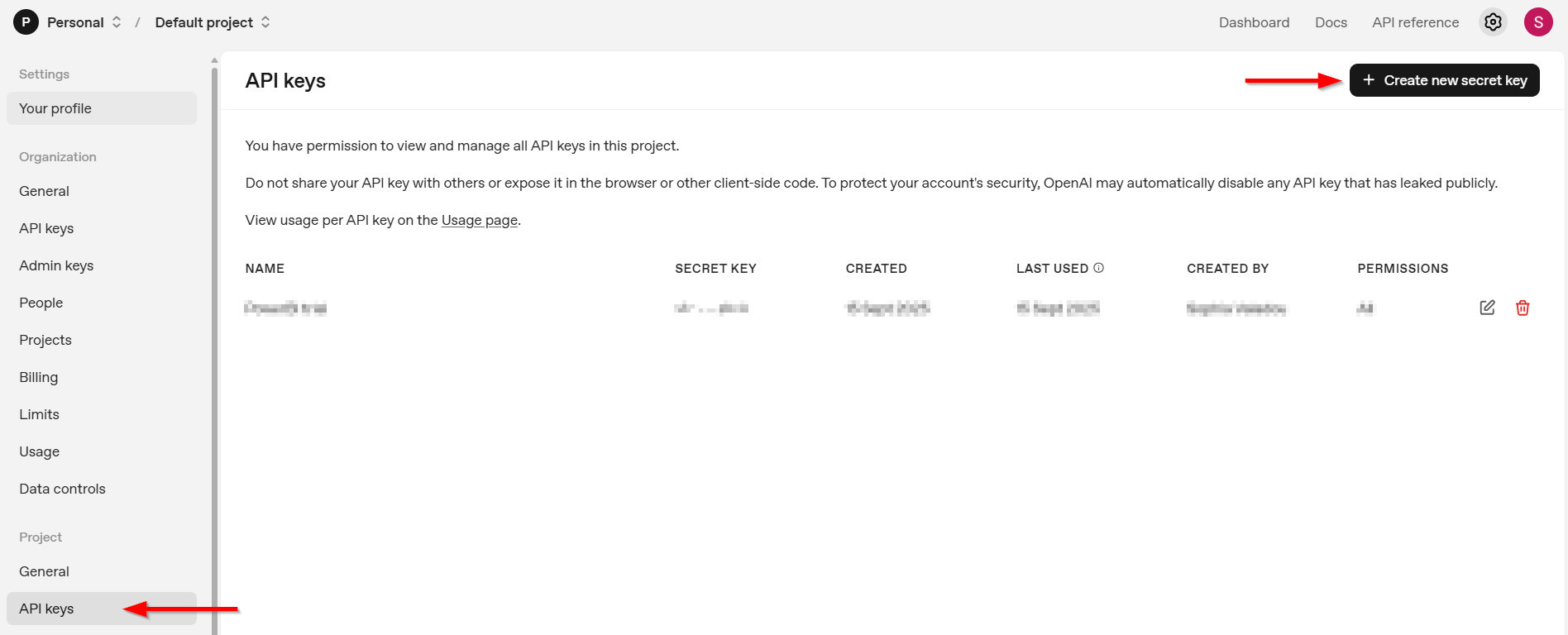
If you haven't done so already, sign up or log in to OpenAI. Go to your profile and find the "User API Keys" section. Create a new secret key and save it somewhere safe; you'll need it later. You can also use the Azure OpenAI API, but this requires some tweaks here and there.
Budgeting for API Usage
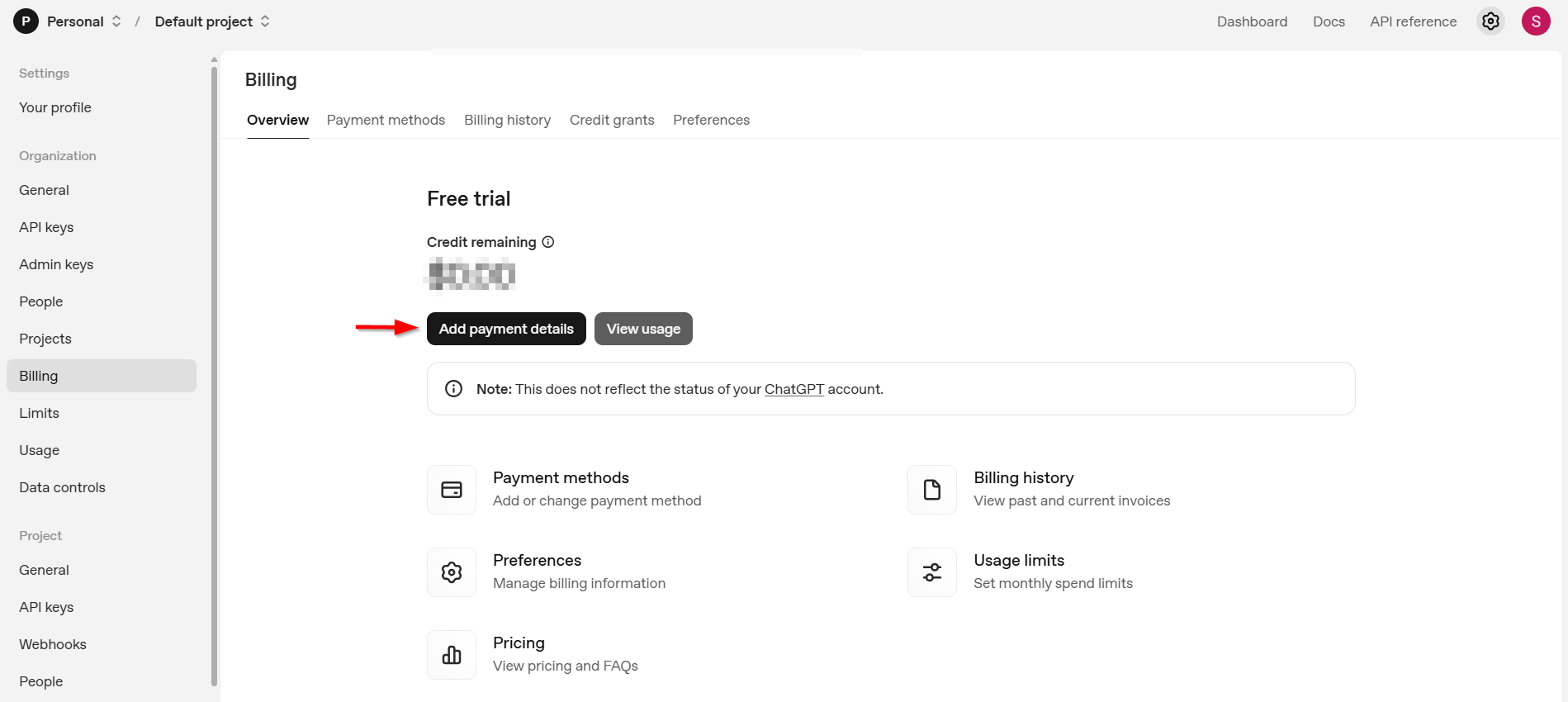
To use the API, you'll have to add a payment method to your OpenAI account. There are various billing options. If your use-case is relatively small-scale, we recommend the pay-as-you-go option with a minimal budget (e.g., $5). That amount alone will let you generate thousands of descriptions.
Getting started
With your OpenAI account set up, your secret key stored securely, and a bit of money in your account, you're ready for the fun part: generating image descriptions in Excel.
At a high level, here's what happens:
You provide the image through a URL in your Excel table.
That URL is sent via a POST request to the OpenAI API, which returns a structured response.
The structured response is flattened into different columns (e.g., a short description, a detailed one, or even translations).
Because everything runs in Excel, updating results is a matter of hitting "Refresh All".
For this example, we'll generate descriptions of famous design furniture pieces, asking the AI for both a plain, objective description and a more elaborate one.
Step 1: Create a Table in Excel
In Excel, set up a table (e.g., FurnitureList) that contains at least one column of image URLs (e.g., Picture).
Populate the table with URLs pointing to the images you want described.
Step 2: Create a Power Query Function
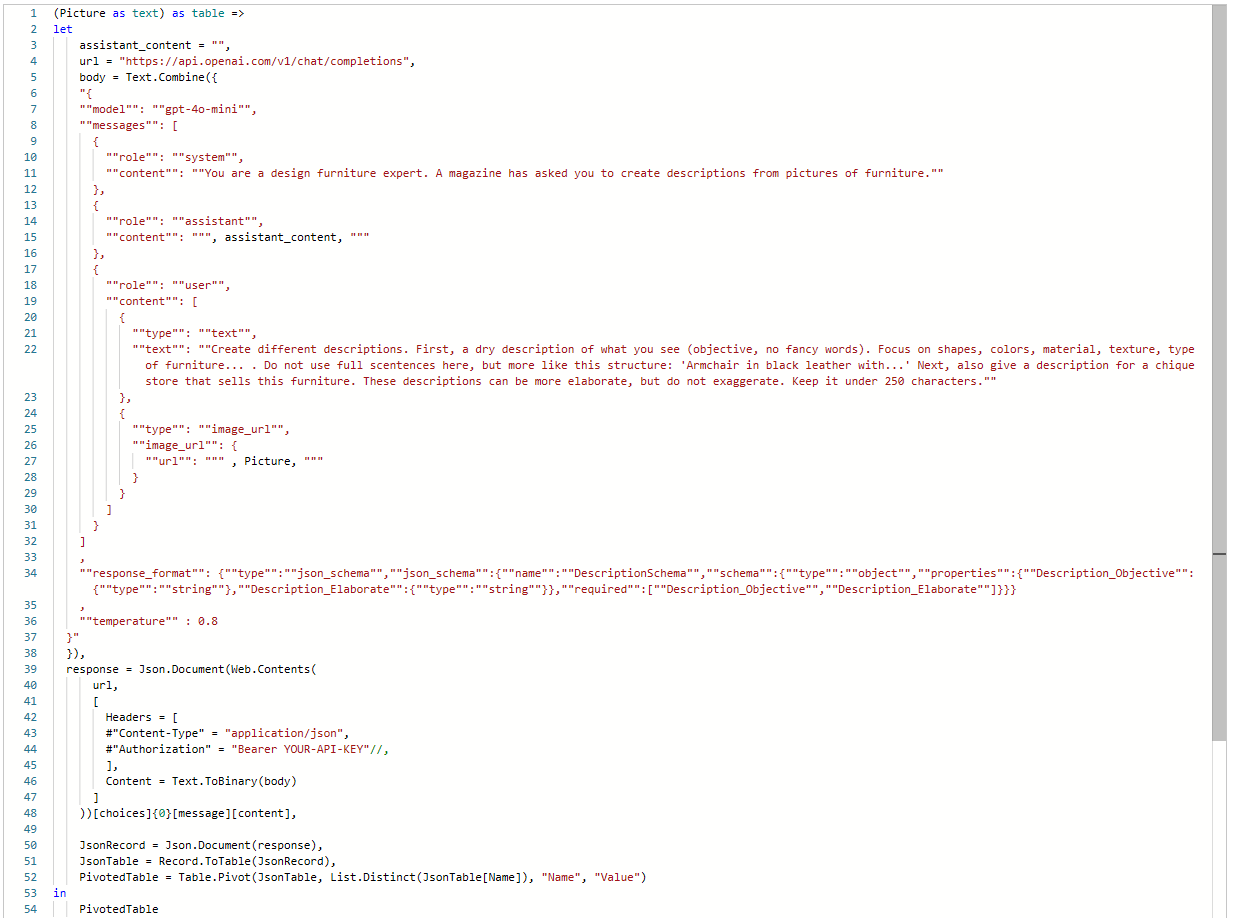
Open Power Query and create a new Blank Query. You'll transform this blank query into a function that calls the OpenAI API. We will not go into detail on the API call here; OpenAIs documentation covers it well. In short, you select a model and a few messages: the system content (which sets the context), the assistant content (optional, providing examples of the required output) and the user content, which contains the prompt and the image URL. You can use structured output as an additional parameter.
Below is an example of what this function could look like:
Step 3: Apply the Function to Your Table
After creating your Power Query function, create a new table query that applies the function to each row in your input table. That's it. Fill the original table with picture URLs, click "Refresh all" in the data tab, and the descriptions are generated for you. You can follow the progress under "Queries & Connections".
Obstacles
The overall approach is simple, but getting the API input just right is the trickiest part:
JSON formatting: writing JSON for the request body can be confusing, especially because Power Query has its own syntax quirks.
Quotation marks: it took some time to figure out how to structure the JSON for the API call in Power Query. In the JSON body, you need to use double double-quotes (like ""this""; see the snapshot above).
Line breaks: no line breaks are allowed in any single content string. Slip one in and you'll get "Bad Request" errors.
Keep your JSON structure clean and consistent and you'll avoid most of these pitfalls.
Results
As described above, we wanted the AI to generate both an objective and a more elaborate description for design furniture. We did not use any assistant content here, so we let the AI generate the descriptions without examples.
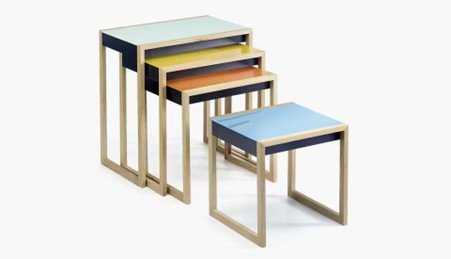
Objective: Nesting tables with four pieces. Rectangular tops in varying colors: blue, orange, yellow, and green. Wooden frames in light oak. Smooth surface finish.
Elaborate: Explore our vibrant nesting tables, featuring a harmonious blend of colorful tops and elegant oak frames. Perfect for modern spaces, these tables offer versatility while adding a pop of color to your decor.

Objective: Armchair and ottoman set in black leather with tufted upholstery, chrome base with curved legs, modern design, minimalist style.
Elaborate: Introducing a sleek armchair and ottoman set, elegantly crafted in black leather and supported by a graceful chrome base. This modern duo blends comfort with sophistication, perfect for enhancing any contemporary living space.

Objective: Wall-mounted shelving unit in light gray. Features multiple open shelves. Includes two drawers and a small closed cabinet. Metal brackets for support. Smooth, matte finish.
Elaborate: Discover our sleek wall-mounted shelving unit in light gray, perfect for contemporary spaces. It combines open shelving with functional drawers and cabinets, offering a stylish yet practical solution for your storage needs.
Possibilities
A few extras worth exploring in OpenAIs API:
Batch API: if immediate results aren't necessary, you can process requests asynchronously using the Batch API. This can reduce costs by up to 50% and allows for higher rate limits.
Additional data: include more than just the image URL in your prompt. Describing real estate images? Add the address, number of bedrooms, and surface area, and the AI works those details into the final description.
Multilingual descriptions: OpenAI offers more languages than just English, so you can create descriptions in different languages. Useful for international businesses or global audiences.
Structured output: if your output needs a specified format, use this parameter to force specific data structures, like JSON or XML. You can also use it to push output into set categories (e.g. input a list of colors as the allowed options for describing a furniture's color).
And nothing limits you to basic image descriptions. The same setup can extract colors, materials or other attributes to categorize products, or generate accessibility-friendly alt texts to make websites more inclusive. Anything that turns visual data into structured text can be automated this way.
Wrap-up
One Power Query function, an API key, and a few dollars: that's the whole setup. In return you get quick, consistent, high-quality descriptions across large sets of images, without coding or specialized software. That makes it useful for very different cases, from product catalogs to digital archives.
call-to-action
Give the steps a try. The repetitive work disappears, and in a business context that means faster results, fewer errors, and more room for work that actually needs a human. If you run into questions or challenges, we'd like to hear about your experiences and learnings. And once the basics run, explore OpenAI's documentation and experiment with extra data in your prompts for richer, context-aware outputs.
Want to implement this in your workflow, too?

Sophia Valadou
Sophia studied Business Engineering at Ghent University with a specialization in Data Analytics. She builds ETL pipelines, datasets, and reports, and has hands-on experience with AI applications. Data runs in the family: both her brother and father work in the field, so she was arguably destined for this.