
Streamline Your SQL Development with Database Projects and Git

First things first
A Visual Studio Database Project is a set of SQL objects that together form the schema of a single database: tables, stored procedures, views, functions. Because that schema lives as files, you can put it under version control. Git then gives you change history, feature branches, and everything else that comes with it. If you want version control for SQL without upending how your team currently develops, this is the approach for you.
There are multiple options for maintaining database projects, such as Azure Data Studio and Visual Studio. In this blog we use Azure Data Studio, the lighter tool to get started with. It's a brother of Visual Studio Code, focused on working with data, database development and management. Our database is a SQL Server database on Azure, and for the Git repository we rely on Git in Azure Repos (DevOps). Before starting this tutorial, check off the following:
A project and repository in Azure DevOps exist.
A SQL Server instance on Azure, with or without an existing database.
- Make sure the field Allow Azure services and resources to access this server is checked. You'll find it on Azure for the SQL server under Security -> Networking -> Exceptions, or you can tick it when creating the server.
The SQL Database Projects extension is installed in Azure Data Studio.
The right Azure account is logged in in Data Studio.
Download the project files on the Plainsight Pro GitHub
Connect to Azure SQL database
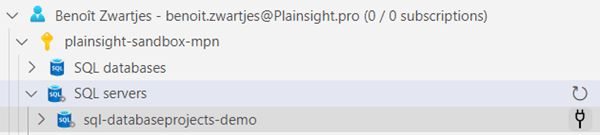
First, set up a connection to the database in Azure Data Studio. In the connections tab at the bottom of your screen you'll see a list of Azure SQL servers. Select the right server and click the connect icon. Verify the connection details and click connect. The database now appears in your connections.
Create a database project
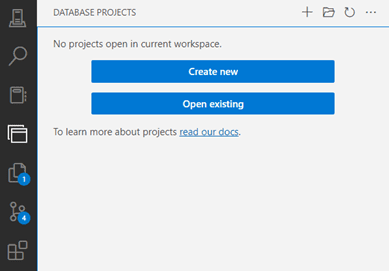
Go to the database projects tab and click create new. Choose Azure SQL database and give it a name. That's it: the new project shows up in the database projects tab.
Import database objects & data to Azure SQL database
Already have data, or want to bring your own? Skip this step. Otherwise, make sure the SQL Server Dacpac extension is installed; it lets us create the demo database from a simple popup. The data we use concerns Formula 1 races and is publicly available on https://ergast.com/mrd/db/. In a later blog we'll see how Data Factory can add new tables to our database. For now, we just import the tables and data. Back in Data Studio, right click your database in the connections tab and click Data-tier Application Wizard.
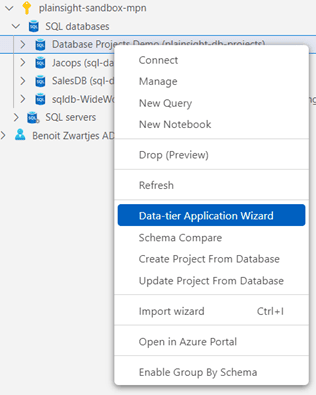
The wizard offers two main options to deploy or import: a dacpac file or a bacpac file. A dacpac contains the database model (tables, views, ...) but no data. A bacpac also includes the data. We want the data too, so bacpac it is. Select Import Bacpac and click next. Enter the location of the .bacpac file in the project files you unzipped and give the database a name. Click next, verify the details and click import. When the process finishes, you should have a database with four tables.
Tip: if you intend to keep this database running for a while, change the compute tier to serverless in the Azure portal. This can save quite a bit of money.
Update database project
Now that we have a database filled with data, it's time to load the schema into the database project. Go back to the database projects tab, right click the project and choose update project from database.
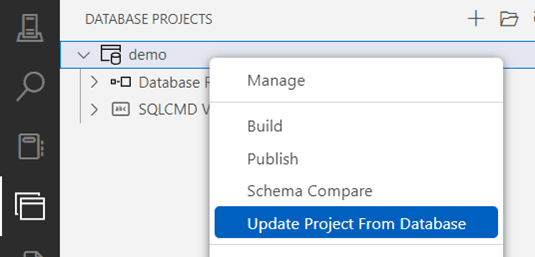
Select the right server and database, verify the details and click update. The schema compare window appears, showing the changes that updating the project from the database will make. Verify these changes and click apply.
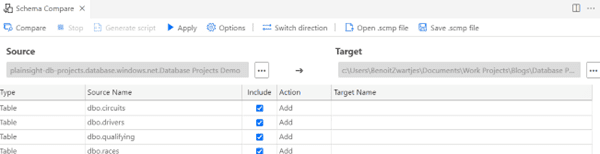
The changes are loaded into the project, and the project is built. The build reports warnings and errors, and creates files that can update other databases (we won't use those files, since later we'll deploy to other databases with CI/CD). Look at the database project now and you'll see folders containing the database schemas, with the SQL files for the tables in the database.
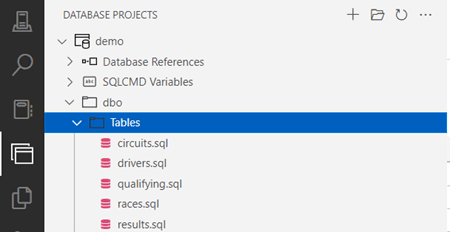
Add database project to source control
The project now contains the database schema, so let's connect it to our Git repository on Azure Repos. Go to the Source Control tab, click Initialize a repository and choose the right project folder. That creates the local Git repository.
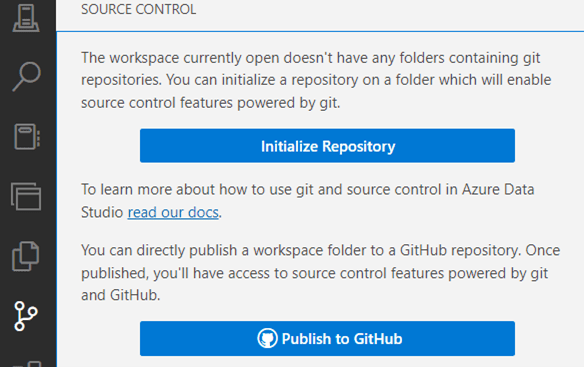

Add the .gitignore file to the project folder that you downloaded from GitHub. The quick route: go to the explorer tab, right click the folder and choose Create File. Name the file .gitignore, enter the following text and save it:
bin/
obj/
The explorer should now look like this:
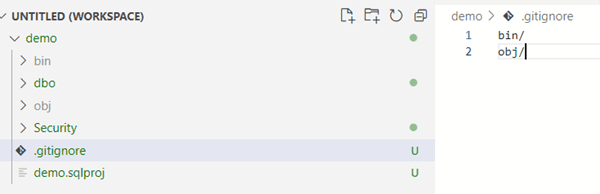
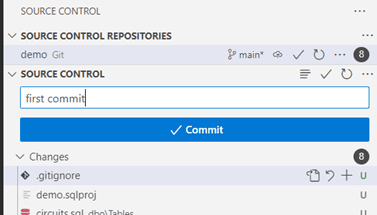
The gitignore file keeps the local files generated by the build out of Git, where they have no business being. Now go back to the Version Control tab, enter a commit message and click Commit all changes.
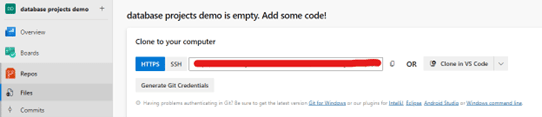
Next, go to your Azure Repo on the files tab and copy the HTTPS link.
Back in Data Studio, in the Version Control tab, click the three dots next to source control, go to remote and click add remote.
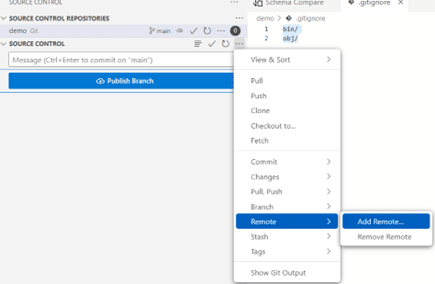
Give the remote a name and paste the HTTPS link. Adding a remote connects your local instance of Git to Azure Repos. You may need to log in with your Microsoft account. Click publish branch to push, and the database project lands in Azure Repos.
Our SQL database is now a database project, connected through Git to our Azure Repo.
Conclusion
That's the whole setup: a database project in Azure Data Studio, the schema imported from a live database, and every change tracked in Git. From here you can review schema changes like any other code, branch out for features, and keep your database deployments reliable.
In upcoming posts we'll build on this with practical use cases and CI/CD integration.
Want to implement this in your workflow, too?

David Loos
David is co-founder of Plainsight and has been in data and analytics for well over fifteen years. He's held every role from developer to program manager, and has led data strategy and architecture for organizations like Delhaize, VDAB, Fluvius, and Barco. He completed Vlerick's Advanced Management Programme, which says as much about how he thinks about business as it does about data.