Save Future You Time with auto-generated Color Measures
introduction
Color is one of the most repetitive and time consuming parts of Power BI report development. Setting button hover states, adjusting pressed colors, choosing the right accent shade, matching borders and backgrounds - many of these steps still can’t be fully handled by a JSON theme. As a result, developers often spend far too much time clicking through formatting menus instead of focusing on actual analytics.
And of course… the moment someone updates the brand guidelines, you get to do it all over again.
So why not treat color like code?
In this blog, we focus specifically on creating a reusable, maintainable color system in Power BI. We’ll look at how to structure color measures, how to name and scale them correctly, and how to automatically generate all your shades using either a C# script (Tabular Editor) or Python (PBIP format). With a solid color setup in place, you can refresh your entire report’s look in minutes instead of hours - and future you will be very grateful.
Color Measures (and Why They Are Worth It)
A JSON theme gets you far, but button states other than default (hover, pressed, disabled) still need manual configuration. That’s where color measures shine: they give you centralized control you can reuse across visuals with conditional formatting → Field value.
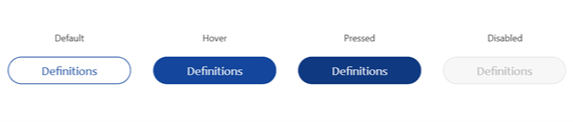
Just imagine how long it would take to reconfigure the colors on all button states… When measures are used as the field value for the conditional formatting, changing these blue shades to something entirely different is cold work.
A Simple Color Measure (example)
Color - Primary 200 = "#3A7BFA"
Use it in any visual property that supports conditional formatting → Field value (e.g., Fill, Border, Font color).
Creating color measures
The first step would be to add color measures. A first thought might be to just add every color in your theme as a measure and be done with it. While this makes sense and is a step in the right direction, this approach is not very dynamic and future proof.
Following this approach, we would add the blue shade used in the default and hover states of the button like this:

While this solution works, we might find that changing the color of the button afterwards still takes a lot of time. If the button color needs to change from blue to green, we would have two options.
1) Update “Color - Blue” and give it a different hex code matching the requested shade of green.
2) Replace the field value measure with “Color - Green” for all necessary properties of the button.
While option one would be the minimum effort, our measure name would not be correct anymore, but option 2 would use the same amount of time as not using measures for your colors.
A scalable naming convention for colors
Instead of naming colors by the hue (e.g., “Blue”), name them by semantic role (Primary, Secondary, Accent1, Accent2). Then add a 3-digit shade suffix that scales lighter/darker:
000 (lightest) → 050 → 100 → 200 (base) → 300 → 400 → 500 (darkest)
This mirrors widely used design scales and gives you predictable control.
Examples
Color - Primary 200
Color - Secondary 300
Color - Accent2 050
Why 200 as base? It leaves room on both sides for lighter and darker variants without running out of numbers too soon.
Semantic roles:
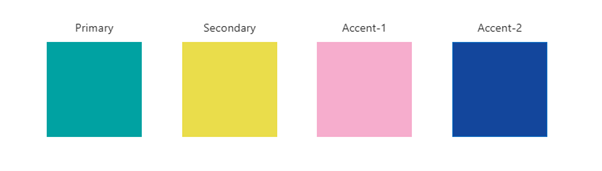
Full names: semantic + shade suffix
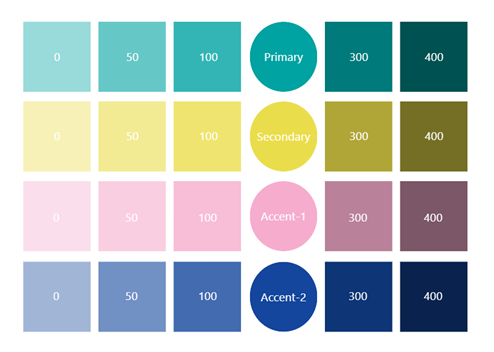
This means that we would have the following color variations for the blue color used in the buttons above:
Color - Accent2-0
Color - Accent2-50
Color - Accent2-100
Color - Accent2-200 (this is the main shade, visualized in the circle)
Color - Accent2-300
Color - Accent2-400
In this set-up, the number at the end will indicate the light-/darkness of the shade, with 200 always indicating the standard variation.
Automating color measures
Creating 20-30 measures is a one‑time investment-but you can automate it completely.
Option 1: C# Script (Tabular Editor)
If you are working with PBIX files, this option is for you! With this approach, color measures will automatically be generated in the Semantic Model.
Before we discuss the script itself, let’s discuss which steps we need to go through.
Step 1 - Extracting colors from Theme.json
In this step, the C# script will read the JSON file in which your current theme is defined. In order to do that, you will need to pass the exact path to the file on your device.
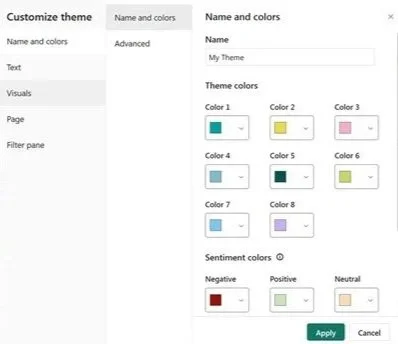
In the Theme.json file, the script will extract the HEX codes for the colors from the dataColors property in which the theme colors are defined.
These dataColors are the colors that you see in the first row of the color picker (besides black and white) or in the Customize theme menu you can find them under “Theme colors”.
Step 2 - Create base colors
After the extraction of the colors’ hex codes, the script will create the base color measures in the table and display folder you specified.
It will also give it a structured name and specific display folder based on the order. In case you named the main Display folder ‘Colors’, the result would look like this:
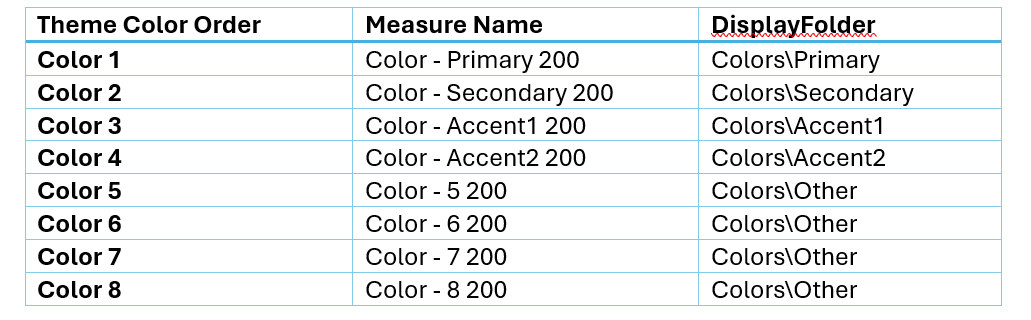
The script can of course be modified to your preferences. You could opt to only add the first four data colors as measures for example, or to name them differently.
Step 3 - Create variations
In the final step, the script will generate dark and light variations for the theme colors. If we look at our Power BI interface again, you can see that each theme color also has some variations available:
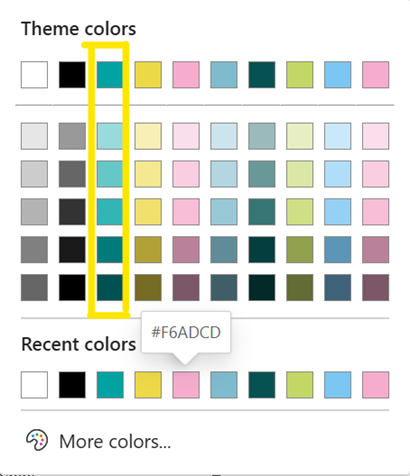
When looking at the first line, we see the “main” color which will be created as the measure ‘Color - Primary 200’ by the script. On the rows below, there are several variations that represent shades of the main color.
As these are not listed in the Theme.json file, we will use the script to generate these variations themselves.
By setting a factor by which to respectively ‘lighten’ or ‘darken’ the main colors, we can generate new Hex codes.
To do this, the script will convert the Hex code of the main color to its Red Green Blue (RGB) components and then use the factor to generate the shades.
These new shades will be named like this:
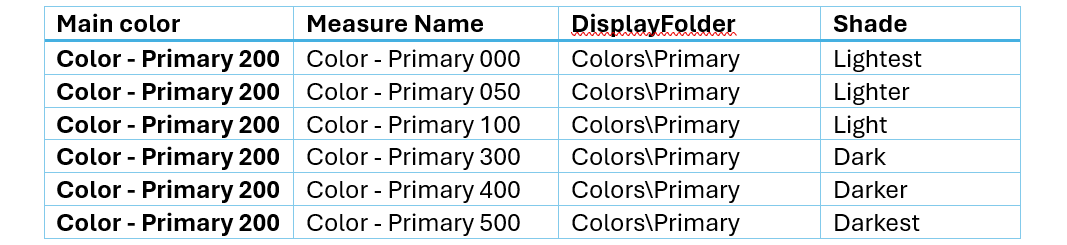
Within the script you can control which suffixes to use for the shades, and how many shades you want to generate.
The script
using Newtonsoft.Json.Linq;
using System.Collections.Generic;
using System.Linq;
/*
// Variables
*/
// Path to your theme file
string themeFilePath = @"C:\Users\user\folder\Theme.json"; // <-- Change this to the path to your JSON Theme
// Target table in the model
var targetTable = Model.Tables["00 - Generic"]; // <-- Change this to table in the model where colors should be added
// Display folder for colors
string displayFolder = "01 - Colors";
// Color Names
string measurePrefix = "Color - "; // This will be the start of your color measure name
string color1 = "Primary";
string color2 = "Secondary";
string color3 = "Accent1";
string color4 = "Accent2";
string color5 = "Other";
// Define suffix arrays for shades
string[] lighterSuffixes = { "100", "050", "000" };
string[] darkerSuffixes = { "300", "400", "500" };
// Set factor to lighten/darken colors
double factorLight = 0.15;
double factorDark = 0.15;
/*
// Step 1 - Extract Theme Colors
*/
// Read JSON
string jsonContent = System.IO.File.ReadAllText(themeFilePath);
var json = JObject.Parse(jsonContent);
// Extract colors
var colors = new List<string>();if (json["dataColors"] != null)
{ foreach (var c in json["dataColors"]) { colors.Add(c.ToString()); }}
if (colors.Count == 0) { Info("No colors found in 'dataColors'."); return;}
/*
// Step 2 - Add Color measures to table
*/
// Get target table
if (targetTable == null)
{ Error("Table " + targetTable + " not found."); return;}
// Create measures for each color
int index = 1;
foreach (var color in colors)
{
// Determine base name and subfolder
string baseName;
string subFolder;
if (index == 1) {baseName = measurePrefix + color1; subFolder = color1; }
else if (index == 2) { baseName = measurePrefix + color2; subFolder = color2; }
else if (index == 3) { baseName = measurePrefix + color3; subFolder = color3; }
else if (index == 4) { baseName = measurePrefix + color4; subFolder = color4; }
else if (index == 5) { baseName = measurePrefix + color5; subFolder = color5; }
else { baseName = null; subFolder = null; }
// If baseName is null, skip creating measures
if (baseName == null || subFolder == null) {index++;continue; }
// Base measure
string baseMeasureName = baseName + " 200";
// Only add measure if it does not exist yet
if (!targetTable.Measures.Any(m => m.Name == baseMeasureName))
{
var baseMeasure = targetTable.AddMeasure(baseMeasureName, "\"" + color + "\"");
baseMeasure.DisplayFolder = displayFolder + "\\" + subFolder;
}
else {Info("Measure '" + baseMeasureName + "' already exists. Skipping."); }
/*
// Step 3 - Generate Color Shades
*/
// Convert HEX to RGB
string hex = color.Trim();
int r = Convert.ToInt32(hex.Substring(1, 2), 16);
int g = Convert.ToInt32(hex.Substring(3, 2), 16);
int b = Convert.ToInt32(hex.Substring(5, 2), 16);
// Generate lighter shades
for (int i = 0; i < lighterSuffixes.Length; i++)
{
double factor = (i + 1) * factorLight;
int nr = (int)(r + (255 - r) * factor);
int ng = (int)(g + (255 - g) * factor);
int nb = (int)(b + (255 - b) * factor);
nr = nr > 255 ? 255 : nr;
ng = ng > 255 ? 255 : ng;
nb = nb > 255 ? 255 : nb;
string newHex = "#" + nr.ToString("X2") + ng.ToString("X2") + nb.ToString("X2");
string newName = baseName + " " + lighterSuffixes[i];
// Only add measure if it does not exist
if (!targetTable.Measures.Any(m => m.Name == newName))
{
var newMeasure = targetTable.AddMeasure(newName, "\"" + newHex + "\"");
newMeasure.DisplayFolder = displayFolder + "\\" + subFolder;
}
else { Info("Measure '" + newName + "' already exists. Skipping."); }
}
// Generate darker shades
for (int i = 0; i < darkerSuffixes.Length; i++)
{
double factor = (i + 1) * factorDark;
int nr = (int)(r - (r * factor));
int ng = (int)(g - (g * factor));
int nb = (int)(b - (b * factor));
nr = nr < 0 ? 0 : nr;
ng = ng < 0 ? 0 : ng;
nb = nb < 0 ? 0 : nb;
string newHex = "#" + nr.ToString("X2") + ng.ToString("X2") + nb.ToString("X2");
string newName = baseName + " " + darkerSuffixes[i];
// Only add measure if it does not exist
if (!targetTable.Measures.Any(m => m.Name == newName))
{
var newMeasure = targetTable.AddMeasure(newName, "\"" + newHex + "\"");
newMeasure.DisplayFolder = displayFolder + "\\" + subFolder;
}
else { Info("Measure '" + newName + "' already exists. Skipping."); }
}
index++;
}
Info("Created " + colors.Count + " color measures plus shades in subfolders.");
Option 2 - PBIP + Python Script
If you prefer leveraging the power of the new PBIP format, you could also use a Python script to achieve the same result with one noteworthy benefit:
While Option 1 uses Tabular Editor and therefore adds the measures to the model, using the PBIP format means we can decide whether we want the measures to be added in the report layer or the model.
The steps followed are largely the same, so we will not specify those again - and just share the code with you.
import json
from pathlib import Path
# ------------------------------------------------------------------------------------------------------------
# CONFIG - adjust these as needed
# ------------------------------------------------------------------------------------------------------------
report_dir = Path.cwd() # assumes script run from "<ProjectName>.Report"
theme_path = report_dir / "StaticResources" / "SharedResources" / "BaseThemes" / "CY24SU02.json"
# How many base dataColors to read
MAX_DATA_COLORS = 5
# Friendly names for each index
NAME_MAP = [
"Primary",
"Secondary",
"Tertiary",
"Accent1",
"Accent2"
]
# Shade levels to generate for each base color
# Key = suffix number in measure name, Value = lighten (positive) or darken (negative) percentage
SHADE_LEVELS = {
0: +0.30, # lighten 30%
50: +0.20, # lighten 20%
100: +0.10, # lighten 10%
200: 0.00, # original color
300: -0.10, # darken 10%
400: -0.20, # darken 20%
500: -0.30 # darken 30%
}
# ------------------------------------------------------------------------------------------------------------
# COLOR HELPERS
# ------------------------------------------------------------------------------------------------------------
def hex_to_rgb(h):
h = h.lstrip("#")
return tuple(int(h[i:i+2], 16) for i in (0, 2, 4))
def rgb_to_hex(rgb):
return "#{:02X}{:02X}{:02X}".format(
max(0, min(255, int(rgb[0]))),
max(0, min(255, int(rgb[1]))),
max(0, min(255, int(rgb[2])))
)
def blend_color(hexcolor, factor):
"""
factor > 0 → lighten toward white
factor < 0 → darken toward black
"""
r, g, b = hex_to_rgb(hexcolor)
if factor > 0:
r = r + (255 - r) * factor
g = g + (255 - g) * factor
b = b + (255 - b) * factor
else:
factor = abs(factor)
r = r * (1 - factor)
g = g * (1 - factor)
b = b * (1 - factor)
return rgb_to_hex((r, g, b))
# ------------------------------------------------------------------------------------------------------------
# JSON UTILITIES
# ------------------------------------------------------------------------------------------------------------
def load_json(path: Path, default: dict = None):
if path.exists():
with open(path, "r", encoding="utf-8") as f:
return json.load(f)
return default if default is not None else {}
def save_json(path: Path, data: dict):
path.parent.mkdir(parents=True, exist_ok=True)
with open(path, "w", encoding="utf-8") as f:
json.dump(data, f, indent=2, ensure_ascii=False)
def ensure_report_extensions(report_definition_dir: Path):
path = report_definition_dir / "reportExtensions.json"
if not path.exists():
skeleton = {
"$schema": "https://developer.microsoft.com/json-schemas/fabric/item/report/definition/reportExtension/1.0.0/schema.json",
"name": "extension",
"entities": []
}
save_json(path, skeleton)
return path
def make_measure(name, hex_value):
return {
"name": name,
"dataType": "Text",
"expression": f"\"{hex_value}\""
}
def upsert_measure(measures, new_m):
names = {m["name"]: idx for idx, m in enumerate(measures)}
if new_m["name"] in names:
measures[names[new_m["name"]]]["expression"] = new_m["expression"]
else:
measures.append(new_m)
# ------------------------------------------------------------------------------------------------------------
# Load theme & extract ONLY dataColors
# ------------------------------------------------------------------------------------------------------------
def collect_data_colors(theme):
data_colors = theme.get("dataColors", [])
if not isinstance(data_colors, list):
return []
return data_colors[:MAX_DATA_COLORS]
# ------------------------------------------------------------------------------------------------------------
# Locate PBIR structure
# ------------------------------------------------------------------------------------------------------------
definition_dir = report_dir / "definition"
if not definition_dir.is_dir():
raise FileNotFoundError("PBIR definition folder not found")
report_extensions_path = ensure_report_extensions(definition_dir)
report_extensions = load_json(report_extensions_path)
entities = report_extensions.setdefault("entities", [])
entity = next((e for e in entities if e.get("name") in ["00 - Generic", "Generic - 00"]), None)
if entity is None:
entity = {"name": "00 - Generic", "measures": []}
entities.append(entity)
entity.setdefault("measures", [])
measures_list = entity["measures"]
# ------------------------------------------------------------------------------------------------------------
# CREATE MEASURES (base + shades)
# ------------------------------------------------------------------------------------------------------------
theme_json = load_json(theme_path)
colors = collect_data_colors(theme_json)
for i, base_hex in enumerate(colors, 1):
friendly = NAME_MAP[i - 1] if i <= len(NAME_MAP) else f"Color{i}"
for shade, factor in SHADE_LEVELS.items():
shade_hex = base_hex if factor == 0 else blend_color(base_hex, factor)
# zero‑pad shade number to 3 digits
shade_padded = f"{shade:03d}"
measure_name = f"Color - {friendly} {shade_padded}"
upsert_measure(measures_list, make_measure(measure_name, shade_hex))
# ------------------------------------------------------------------------------------------------------------
# ADD STATIC BLACK + WHITE MEASURES
# ------------------------------------------------------------------------------------------------------------
upsert_measure(measures_list, make_measure("Color - Black", "#000000"))
upsert_measure(measures_list, make_measure("Color - White", "#FFFFFF"))
# ------------------------------------------------------------------------------------------------------------
# Save
# ------------------------------------------------------------------------------------------------------------
save_json(report_extensions_path, report_extensions)
print("🎉 Added base colors + shade variations + Black & White into 00 - Generic")
Conclusion
If you spend even 30 minutes per month tweaking color codes, color measures will quickly pay for themselves.
Adopt a semantic + shade naming pattern (Color - Role 000…500)
Apply measures to color properties via Field value
Use the C# + Tabular Editor or PBIP + Python script to generate everything automatically
Extra tip: you could also greatly benefit from using MCPs to tackle this scenario!

There are many ways to handle colors in Power BI, but building a reusable color system is one of the most impactful improvements you can make. Well-designed color measures-automatically generated and consistently named-make your reports more consistent, easier to maintain, and far more resilient to unexpected branding changes.
If you'd like to take this approach further, or if your organization is exploring how to make its Power BI environment more scalable and futureproof, feel free to reach out to me or my colleagues. Our team is ready to help you design a robust color system, streamline your development workflow, or support broader data and reporting needs.