Copilot Gives Bad Answers? Fix Your Data First.
How to prepare your Power BI semantic models so Copilot works
Over the past few weeks, I've been testing Copilot to see how well it works with my Power BI data. After about half an hour of testing, my first reaction was a lot of frustration. In most cases, Copilot failed to give me a good answer, which was surprising since I've gotten used to getting solid responses when asking general questions to ChatGPT or Claude.
After looking into it, this turns out to be completely normal. Copilot misses the mark because a semantic model that hasn't been prepared for AI just can't give you the answers you're looking for. All that expert knowledge you pick up on the job, the unwritten business rules, the logic that only lives in people's head, Copilot knows nothing about any of that.
The good news: there are concrete steps you can take to get your semantic model ready. Steps that help Copilot understand your data better and respond in a way that's actually useful. In this blog, I'll walk through two of them.
The Real Problem
When you ask Copilot a question, it reads your semantic model to figure out the answer. It looks at table names, column names, relationships, measures, descriptions, and any other metadata you’ve added. That is the full context it has to work with. It is worth noting, however, that Copilot cannot access the actual logic inside a DAX measure. Instead, it must rely on the measure’s name, together with any descriptions or instructions, to infer the measure’s purpose. There is no hidden intelligence that fills the gaps. During the testing, I saw this went wrong in a few ways that I’m sure most Power BI teams would recognize:
Copilot picked the wrong measure because two measures had similar, vague names.
It couldn’t answer “show me revenue by region” because nothing in the model connected the word “revenue” to the actual “Sales Amount” column.
It joined tables incorrectly because the model had ambiguous or inactive relationships.
It gave wrong responses because no description told it what a measure calculated.
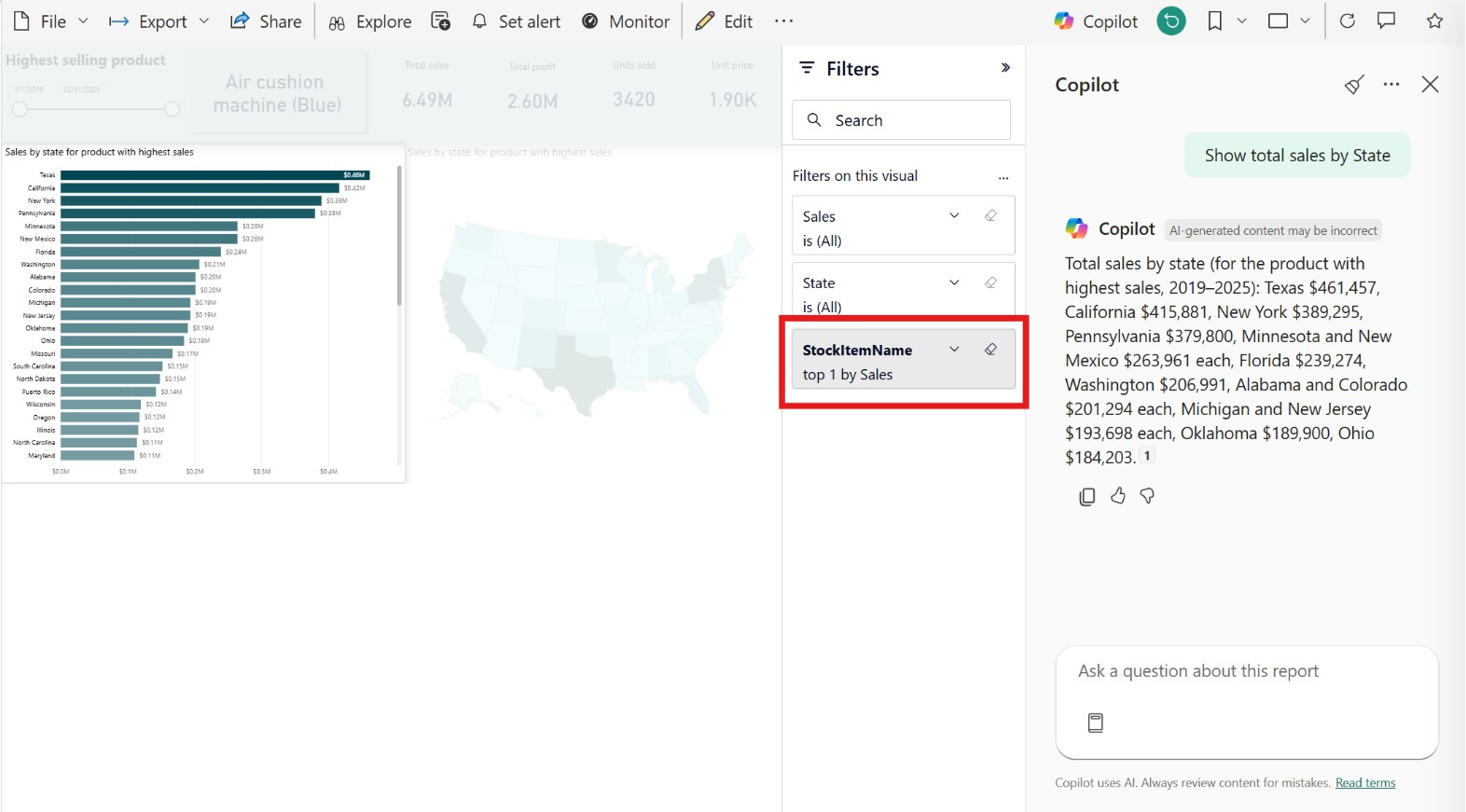
In this image, Copilot answers the question “Show total sales by State.” At first glance, the answer looks correct. But if we check the filters on the report, we can see that the visual only includes sales for the best-selling item. This shows why it is important to always check how Copilot got to the given answer.
Step 1: Clean Up Your Model
Before we look at any AI-specific settings, the biggest improvements come from making our semantic model better. This is a step that won't be new to people who are used to working with Power BI. Building a good semantic model was already crucial for having a fast and well-performing report, but for Copilot it can make the difference between a wrong or a right answer. Below are a few examples of things we can keep in mind when optimizing our model.
Star schema:
The first key aspect is having a good semantic model. Things to keep in mind include a fact table in the center, surrounded by dimension tables that are linked to each other via one-to-many relationships. This is something Copilot handles well.Rename table and columns:
Go through your tables and columns. If a name wouldn’t make sense to someone seeing the data for the first time, change it. “cust_nm” becomes “Customer Name.” “tbl_fct_01” becomes “Sales.” This can be a tedious task, but it is one of the most impactful things you can do.Add synonyms
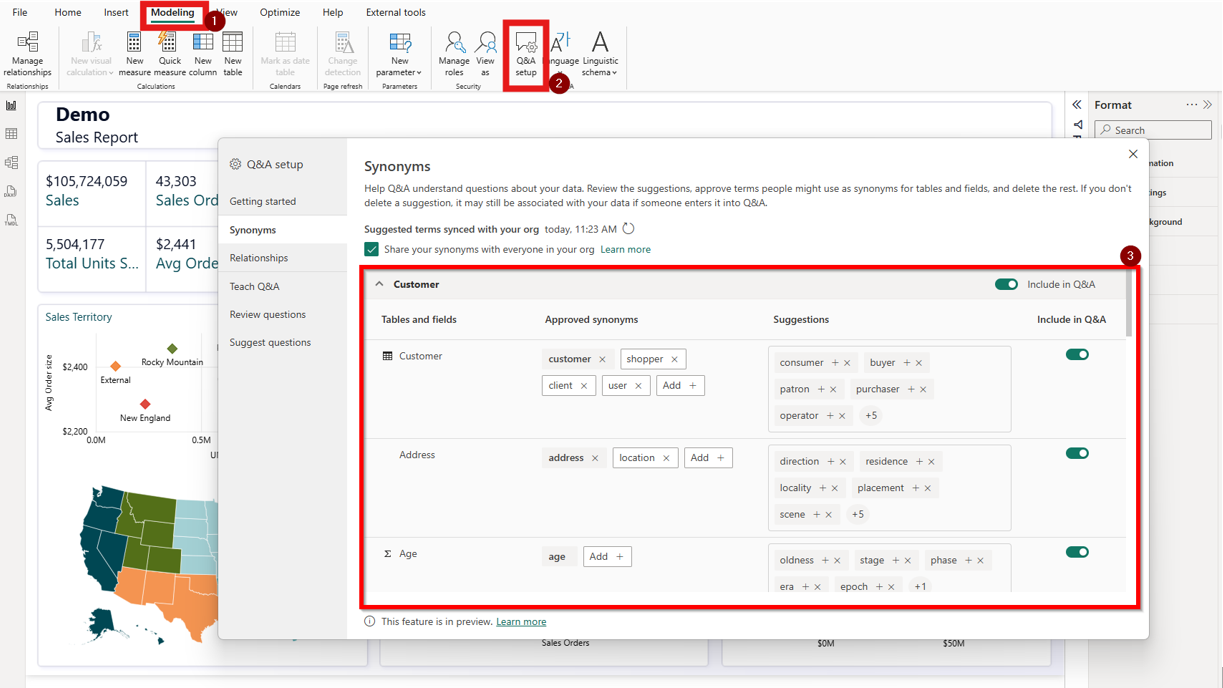
In Power BI Desktop, open Q&A setup and add synonyms for your tables, columns, and measures. If your measure is called “Total Sales Amount,” add “revenue,” “sales,” and “turnover.” Your dimension table is “Dim_Customer”? Add “customers,” “clients.” Nobody asks questions using your internal naming conventions, and without synonyms Copilot can only match exact names. This is the ideal place to add the context behind business jargon to your semantic model.
Write descriptions
Every measure should have a clear description that explains what it does. You can add this description in Model view under Properties. It does not have to be long or complex. A simple sentence like “Total revenue from product sales, excluding returns” is already very useful. Copilot uses these descriptions to understand when a measure should be used and to explain its answer in a clearer way. So, descriptions are more than just documentation. They help guide both Copilot and your users to the right insight.
Step 2: Use Prep Data for AI
With a clean model in place, Microsoft has built three tools to help Copilot perform even better. You’ll find them under “Prep Data for AI” in both Power BI Desktop and the Service.
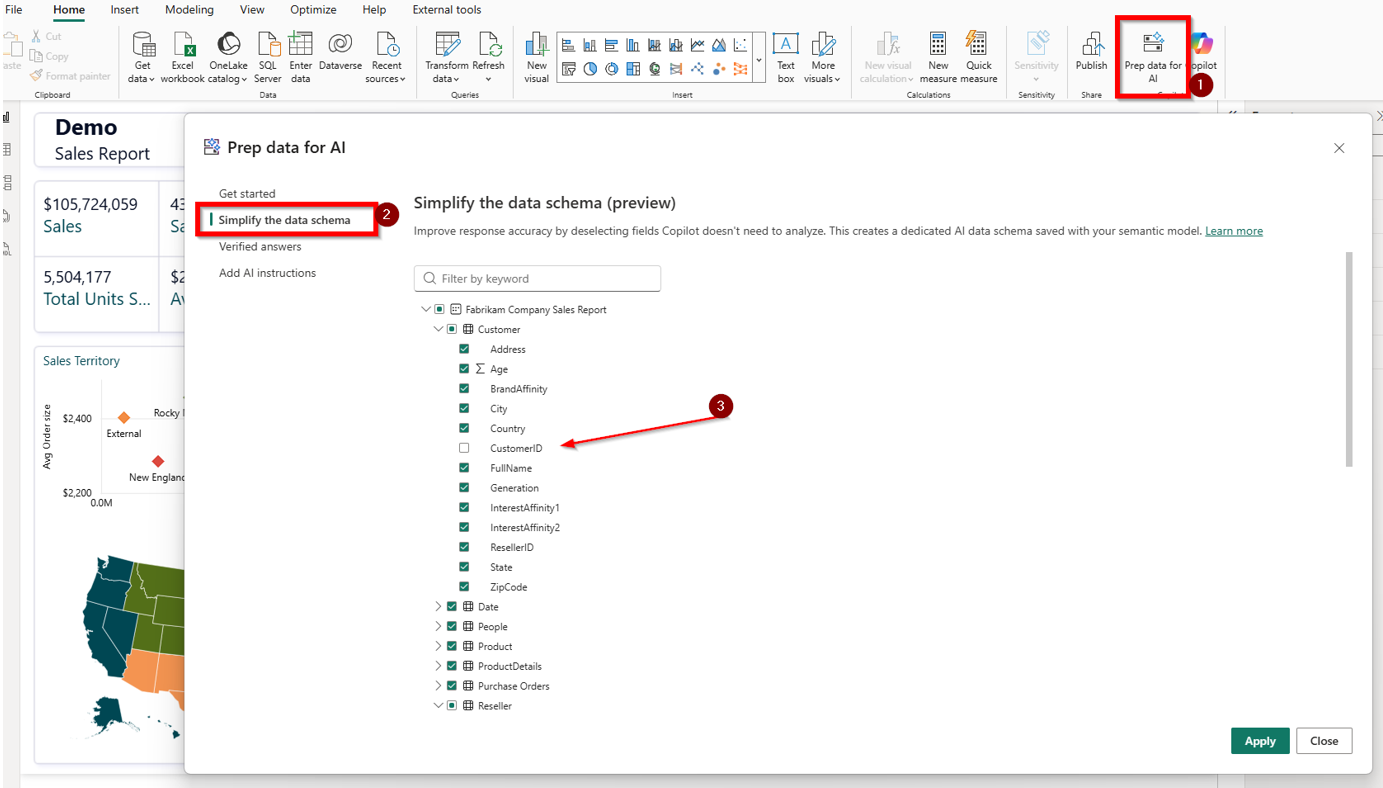
Simplify the schema
Most semantic models contain tables that Copilot doesn’t need. Think of tables like staging tables, internal lookups, and columns used only in specific calculations. Schema simplification lets you pick which tables, columns and measures Copilot should pay attention to. This feature doesn’t hide anything from report users it only keeps Copilot focused on what matters. It is therefore very important not to see this feature as a security feature.
Verified Answers
If you already know that certain questions are best answered by specific visuals, you can use “Verified Answers”. You take an existing visual from a report, say a bar chart showing sales by region, and attach trigger phrases to it: “which region sells the most,” “sales by region,” “regional breakdown.” When someone asks something that matches, Copilot returns that exact visual instead of trying to build one from scratch.
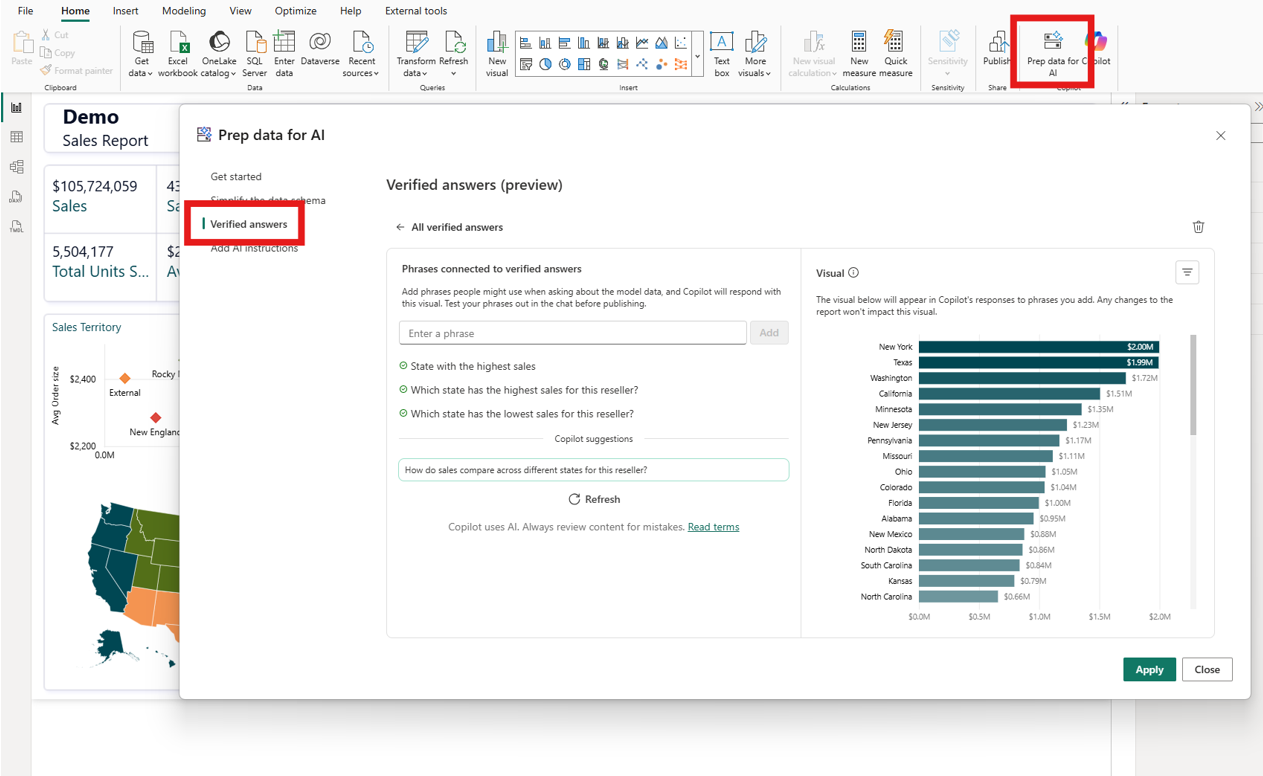
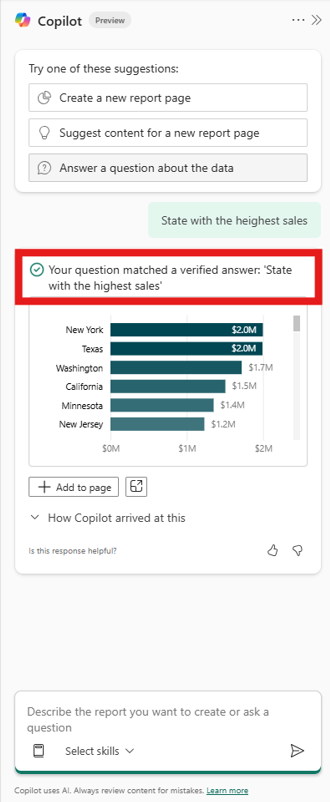
The result shows up with a checkmark, so users know a person reviewed it. I’d start with the 10–15 questions that come up in every team meeting.
AI instructions
This is where you brief Copilot on things it wouldn’t know otherwise. Your fiscal year starts in April? Write that down. When people say “profit” they mean gross, not net? Add it. You want responses as tables instead of bullet points? Say so.
Experience learns that shorter instructions beat longer ones. Put the important information first. If Copilot keeps getting something wrong, add an instruction to correct it. Think of it as onboarding a new colleague who’s sharp but knows nothing about how your company works.
Mark it as Prepped
Once we have gone through all of the points above, there is one final step left: marking the semantic model as “Prepped for AI.”. This removes the quality warning from Copilot answers and makes your model rank higher when people use the Standalone Copilot to search for data. Small toggle, big difference in how people perceive the results.
Conclusion
Where I’d start is by not trying to do everything at once. Instead, pick one model that is used a lot and improve it step by step. Start by fixing the names and relationships, then add synonyms for your most important columns and measures. After that, write clear descriptions for your measures, create verified answers for the top ten questions your team asks, and add a few AI instructions for key business definitions. Once that is done, mark the model as “Prepped for AI” and test it in Standalone Copilot. The difference between a prepped and an unprepped model is significant. Copilot goes from giving answers you would not want to share with anyone to giving results you could send to your manager in Teams without thinking twice.
At Plainsight, we help teams make their Power BI semantic models ready for AI. From stronger data modeling and verified answers to Fabric Data Agent setups, we help turn semantic models into something Copilot can actually work with. If you would like to see where your current model stands, feel free to reach out for a free Copilot readiness review.